
Genshin Impact MacBook Compatibility and Play Methods
Discover the definitive answer to whether you can play Genshin Impact on a MacBook, exploring optimized methods like cloud gaming and PlayCover for seamless Teyvat adventures.
If you're trying to figure out whether a MacBook can handle Teyvat, the short answer is yes — you can play Genshin Impact on a MacBook in 2026. The catch is that the best way to do it depends a lot on the Mac you're using. HoYoverse still hasn't shipped a native macOS version, so Mac players have to rely on workarounds like cloud gaming, Parallels, PlayCover, or Crossover. All of them work, but not in the same way, and not for the same kind of player. What makes sense for an M3 MacBook Air is very different from what you'd recommend to someone on an older Intel model.
Can You Play Genshin Impact on MacBook
Native macOS Client Status
As of mid-2026, there is still no official native macOS client for Genshin Impact. The game is officially available on Windows, PlayStation 4, PlayStation 5, Xbox Series X|S, iOS, and Android, but macOS remains missing from that lineup. So if you're asking can you play Genshin Impact on a MacBook through a proper first-party Mac launcher, the answer is still no.
That said, this is where things get a lot better than they used to be. The available workarounds are now polished enough that, for most players, the lack of a native Mac version is more annoying on paper than in actual use.
Intel MacBook Support
If you're on an Intel MacBook — basically anything released before late 2020 — your options are narrower. PlayCover is off the table because it only works on Apple Silicon. Parallels can technically run Windows 11 ARM in a VM on Intel Macs, but official support is getting shakier, and gaming performance there is pretty underwhelming compared to M-series machines.
For most Intel MacBook users in 2026, cloud gaming is the cleanest option. It avoids local rendering entirely, so your laptop is mostly just handling video playback and input. If your browser works well and your internet is stable, that's usually the path of least resistance.
Apple Silicon Support
M1, M2, M3, and M4 MacBooks are in a much better spot. These systems can run PlayCover natively, handle Windows 11 ARM through Parallels with decent results, and of course use cloud gaming without any trouble. Because Apple Silicon uses unified memory, even an 8 GB model can run Genshin at mobile-style settings, while 16 GB configurations feel far more comfortable and noticeably smoother.
Put simply, if you're serious about playing Genshin on a MacBook, Apple Silicon is where things start to make sense.
Best Method by MacBook
| MacBook Type | Recommended Method | Backup Option |
|---|---|---|
| Intel (2015–2020) | Cloud Gaming (GeForce Now / Xbox) | Crossover |
| M1 / M1 Pro / M1 Max | PlayCover or Parallels | Cloud Gaming |
| M2 / M2 Pro / M2 Max | PlayCover or Parallels | Cloud Gaming |
| M3 / M3 Pro / M3 Max | PlayCover or Parallels | Cloud Gaming |
| M4 / M4 Pro | PlayCover or Parallels | Cloud Gaming |
Genshin Impact on MacBook Methods
There are four main ways to get Genshin Impact running on a MacBook right now. Each one has its own strengths, and honestly, each one also comes with a few compromises.
Cloud Gaming
Cloud gaming is easily the simplest route if you want to answer can you play Genshin Impact on a MacBook with the least amount of setup. Services like Nvidia GeForce Now and Xbox Cloud Gaming run the game on remote hardware, then stream the video feed to your MacBook. Your laptop doesn't install the full game locally and doesn't need to render anything heavy on its own.
That makes setup incredibly light. You usually just need a browser or a small app, and that's it. No 50+ GB install, no VM, no sideloading.
The downside is latency, and this is the part that matters. For 1080p at 60 FPS, you'll want a stable 15 to 25 Mbps connection at minimum, and Ethernet is still way more reliable than Wi-Fi. On a good setup, latency tends to land somewhere around 30 to 60 ms. That's fine for daily commissions, exploration, and story quests, but you'll feel it when combat gets tighter. Spiral Abyss is where cloud play starts to show its limits, especially when you need clean dodges and fast reaction timing. Data usage is also pretty high, usually around 9 to 15 GB for a two-hour 1080p session, so this is not ideal on capped mobile data.
Parallels Windows
Parallels Desktop lets you run Windows 11 ARM inside a virtual machine, then install the normal HoYoverse PC launcher from there. On Apple Silicon, this is the officially recognized way to virtualize Windows 11 on a Mac, and as of 2026, Parallels remains the only route Microsoft formally supports for that setup.
Getting started does take some work. You need a Parallels Desktop license — the Pro edition is around $99.99 per year — plus the Windows 11 ARM ISO from Microsoft. After that, you still need to decide how much RAM and storage to give the VM.
For memory, 16 GB unified memory MacBooks should generally allocate 8 GB to Windows, which leaves enough breathing room for macOS. On 8 GB systems, 4 GB is about as far as you can reasonably go, and once swapping kicks in, performance drops fast. Storage is another real issue. Between the VM itself and the Genshin install, you're looking at more than 80 GB pretty easily. On a 256 GB SSD, that fills up space in a hurry.
Heat is also part of the equation. Running Genshin through Parallels pushes M-series chips harder than most native apps. On MacBook Pro models, you'll hear the fans. On MacBook Air, which has no fan at all, throttling can start showing up after 20 to 30 minutes of sustained play.
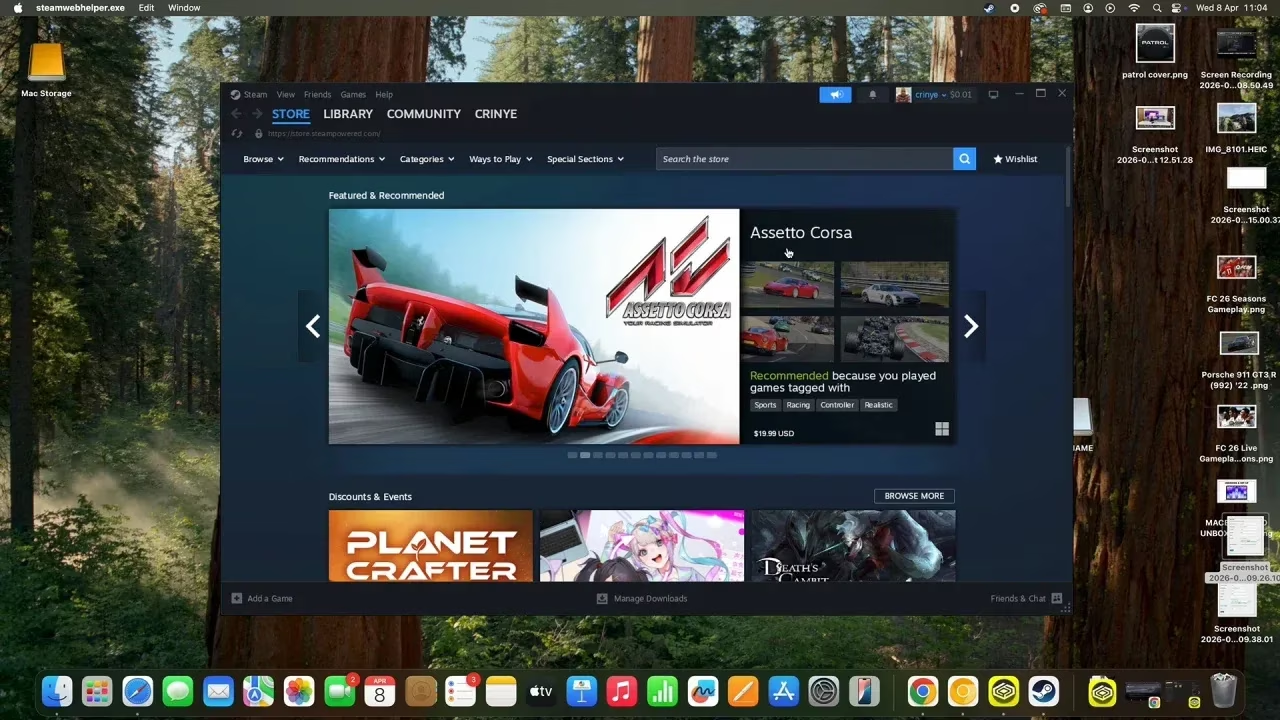
PlayCover
PlayCover is probably the most interesting local option for Apple Silicon users. It's an open-source tool that lets you sideload the iOS version of Genshin Impact into a macOS-friendly wrapper, then run it natively on M-series Macs. Since both iOS devices and Apple Silicon Macs use ARM architecture, this works surprisingly well. Intel MacBooks can't use it at all.
The setup involves grabbing a Genshin IPA file, importing it into PlayCover, then setting up keymapping so touch controls translate into proper desktop inputs like WASD, mouse camera movement, and hotkeys for skills and bursts. PlayCover v2.0.5, released in March 2026, added full support for macOS 15 Sequoia and improved optimization for M4 chips.
In actual use, it feels a lot like the mobile version of Genshin, just with much better controls. Keymapping is flexible, controller support is solid, and for a lot of players it ends up being the sweet spot between performance and convenience. The main warning is the anti-cheat angle. HoYoverse has occasionally flagged sideloaded builds, and while bans are uncommon, they have happened. So yes, PlayCover works well, but it is still an unofficial method and should be treated that way.
Crossover Compatibility Layer
Crossover, made by CodeWeavers, is a commercial compatibility layer built on Wine. Instead of running a full Windows VM, it creates a macOS environment that can launch certain Windows apps directly. In practice, you install the HoYoverse launcher or another supported client inside a Crossover bottle, then run Genshin from there.
As of April 2026, Crossover works on both Intel and Apple Silicon MacBooks, which makes it especially relevant for Intel users who want something other than cloud gaming. It also avoids the overhead of a full Windows install, which is nice.
The trade-off is consistency. Performance usually trails Parallels in heavier scenes, and Genshin's anti-cheat compatibility can be a little unpredictable. Still, for lighter play sessions or players who want a middle-ground option, Crossover is absolutely worth mentioning.
MacBook Compatibility and Performance
MacBook Model Comparison Table
| MacBook Model | RAM | Recommended Method | Expected Performance |
|---|---|---|---|
| MacBook Air M1 | 8 GB | PlayCover | Mobile settings, 30–40 FPS |
| MacBook Air M1 | 16 GB | PlayCover / Parallels | Mobile-high settings, 45–60 FPS |
| MacBook Pro M2 Pro | 16 GB | Parallels / PlayCover | Medium-high settings, 55–60 FPS |
| MacBook Air M3 | 8 GB | PlayCover | Mobile settings, 35–50 FPS |
| MacBook Air M3 | 16 GB | PlayCover / Parallels | High settings, 60 FPS stable |
| MacBook Pro M4 Pro | 24 GB+ | Parallels / PlayCover | High–Very High, 60 FPS+ |
| Intel MacBook (any) | 8–16 GB | Cloud Gaming | Dependent on connection |
M1/M2/M3/M4 Expectations
The M1 is still perfectly capable of running Genshin through PlayCover, especially if you're fine with settings that feel similar to a good mid-range phone. You can expect smooth exploration and combat in the 30 to 45 FPS range. M2 improves GPU performance enough that 60 FPS becomes much more realistic across most overworld content, including heavier regions like Fontaine and Natlan.
M3 and M4 chips have enough headroom that the game starts feeling genuinely comfortable rather than merely playable. On higher-end MacBook Pro hardware like the M3 Max or M4 Pro, Parallels becomes much more appealing too, since thermals and sustained performance are less of a concern.
8 GB vs 16 GB RAM
This is probably the most important buying question for anyone planning to play locally. With PlayCover, 8 GB can work, but only barely if you like multitasking. Leave Safari, Discord, or HoYoLAB open in the background and memory pressure shows up quickly, usually in the form of stutter.
With Parallels, the gap is even bigger. Splitting 8 GB between macOS and a Windows VM leads to frequent swapping, and that's when mid-fight frame drops start to get really annoying. 16 GB is the comfortable baseline for Genshin Impact on a MacBook, and if Parallels is your main plan, it should honestly be treated as the minimum.
SSD Space, Thermals, and Battery
Storage needs vary a lot depending on method. The iOS version used through PlayCover takes up around 40 GB installed. The Windows route through Parallels is much heavier, with the VM image and game data together landing closer to 80 GB. On a 256 GB SSD, that can get cramped fast, especially once macOS and your other apps are factored in.
Thermals matter too, especially on the fanless MacBook Air. Long Genshin sessions through Parallels can trigger pretty noticeable throttling after around half an hour, and that can cut effective frame rates by 15 to 20 percent. Battery life also drops hard compared to normal laptop use. On an M3 MacBook Air using PlayCover, expect something like 3 to 4 hours of gaming rather than the 12 to 15 hours Apple quotes for lighter workloads.
Playable Performance Targets
Different content puts very different stress on the system, so it helps to separate expectations a bit:
-
Questing and open-world exploration: This is the easiest scenario. Any M-series MacBook using PlayCover or Parallels should handle cutscenes, exploration, and normal combat without much trouble.
-
Co-op and weekly bosses: Fights like Azhdaha or Scaramouche add more particles, more reactions, and more visual clutter. An M2 with 16 GB or better handles this comfortably, while an 8 GB M1 may dip here and there.
-
Spiral Abyss viability: This is the real stress test. Local methods on M2 Pro and above are strong enough for smooth Abyss clears. Cloud gaming can still work, but the extra input delay makes tight dodge-cancel timing much less reliable on later floors.
How to Play Genshin Impact on MacBook
The first step is just choosing the right route for your hardware. If you have an Apple Silicon MacBook with 16 GB of RAM and roughly 100 GB of free storage, you have the most flexibility. In that case, both PlayCover and Parallels are solid choices, and the decision mostly comes down to whether you want the iOS version or the full PC client. If you're on Intel, it's usually best not to overcomplicate things — go straight to cloud gaming.
For PlayCover, the process is fairly straightforward once you know the flow:
-
Download the latest PlayCover release from its official GitHub page.
-
Obtain a Genshin Impact IPA file.
-
Import the IPA into PlayCover.
-
Sign it locally and launch the game.
-
Set up or import a community keymapping profile, then tweak it to your liking.
Parallels follows a more traditional desktop setup:
-
Install Parallels Desktop.
-
Create a new VM using the Windows 11 ARM ISO.
-
Finish Windows setup and resource allocation.
-
Install the HoYoverse launcher.
-
Download and launch Genshin Impact normally.
Cross-save is the easy part. Your progress is stored on HoYoverse's servers, so switching between devices is seamless. You can play on PC, move over to your MacBook, and pick up exactly where you left off with the same characters, Primogems, artifacts, and quest progress. You just need to log in with the same HoYoverse account or linked platform account.
Best Genshin Impact on MacBook Settings
Resolution and FPS targets depend heavily on the method you're using. In PlayCover, the iOS client scales with the MacBook display, and on M2 or newer hardware, the 60 FPS cap is very achievable. In Parallels, 1920x1080 with the medium preset tends to be the best balance between image quality and frame stability. If performance starts slipping, shadows are usually the first thing worth lowering from Very High.
Controller versus keyboard mapping mostly comes down to how you like to play. Keyboard and mouse through PlayCover can feel surprisingly sharp, especially in Spiral Abyss where precise dodge timing and quick burst rotations matter. A Bluetooth controller like the DualSense or Xbox Wireless Controller is more comfortable for longer exploration sessions and story content. For cloud gaming, a wired or low-latency wireless controller is the better call, since every extra bit of input delay adds up.
Cooling and power mode are more important on MacBooks than many players expect. On MacBook Pro models, turning on High Power Mode under System Settings > Battery > Options helps maintain higher sustained clocks and is absolutely worth enabling for Parallels. On a MacBook Air, even simple things help — use a hard desk instead of a blanket or couch, and a cooling stand can make longer sessions more stable.
For cloud gaming network tweaks, moving from 2.4 GHz Wi-Fi to 5 GHz is a noticeable upgrade, and wired Ethernet through a USB-C adapter is better still. If you're using GeForce Now, manually choosing the closest server region instead of leaving it on auto can shave off around 10 to 20 ms of latency, which is a pretty meaningful difference in combat.
Genshin Impact on MacBook FAQ
Can MacBook Air run Genshin?
Yes. Both Intel and M-series MacBook Air models can run Genshin Impact, though the method changes. M-series Air models can use PlayCover or Parallels, while Intel Air models are better off with cloud gaming. Because the Air has no fan, longer local sessions can lead to throttling after 20 to 30 minutes, but shorter sessions and cloud play are much less affected.
Is it safe on Mac?
Cloud gaming through GeForce Now or Xbox Cloud Gaming is fully legitimate and carries no account risk. PlayCover itself is safe if you download it from the official repository, but sourcing IPA files from unofficial places adds risk. HoYoverse has not broadly banned PlayCover users, though it still sits outside official support and terms. Parallels with a valid Windows 11 license is completely legitimate.
Can Intel Macs still play in 2026?
Yes, they can — mainly through cloud gaming and Crossover. Intel users can't use PlayCover, but they are definitely not shut out of the game. GeForce Now's free tier also gives Intel MacBook owners a no-cost way to access Genshin as long as they have a modern browser and decent internet.
Best option in 2026?
For Apple Silicon users, PlayCover gives the best overall balance of performance, no Windows licensing cost, and relatively simple setup, especially on M2 and newer MacBooks where the iOS client runs extremely well. Parallels is the better fit if you specifically want the full PC version, the full desktop UI, and standard PC-style mouse-and-keyboard behavior. Cloud gaming is still the easiest fallback for Intel Macs or for anyone who doesn't want to give up local SSD space.
Conclusion
So, can you play Genshin Impact on a MacBook in 2026? Absolutely — you just need to pick the method that matches your hardware and expectations. Apple Silicon MacBooks have the best overall experience, with PlayCover, Parallels, and Crossover all on the table, plus cloud gaming as a backup. Intel MacBooks are much more limited, but cloud streaming still gives them a reliable path into the game.
If you want the lightest and smoothest local option, PlayCover is usually the standout pick. If you want the full PC client and a more traditional desktop setup, Parallels makes more sense. And if you just want to log in and play without eating storage space, cloud gaming is still hard to beat. No matter which route you choose, your HoYoverse account stays synced, so your characters, artifacts, banner history, and Abyss progress all carry over without any hassle.